Hi guys! I finally installed a pi-hole DNS server in my network. I want to show you how to do it, merely using docker. Total time needed for this setup ~15 minutes.
> Archived article from 2021, from the old nutellino.it: commands and versions may be out of date.
# archive# docker# dns# ads
No ads, please!
Hi guys!
I finally installed a pi-hole DNS server in my network. I want to show you how to do it, merely using docker. Total time needed for this setup ~15 minutes.
Clone it in a folder of your choice and open the docker-run.sh file:
text
#!/bin/bash

# https://github.com/pi-hole/docker-pi-hole/blob/master/README.md

PIHOLE_BASE="${PIHOLE_BASE:-$(pwd)}"
[[ -d "$PIHOLE_BASE" ]] || mkdir -p "$PIHOLE_BASE" || { echo "Couldn't create storage directory: $PIHOLE_BASE"; exit 1; }

# Note: ServerIP should be replaced with your external ip.
docker run -d \
    --name pihole \
    -p 53:53/tcp -p 53:53/udp \
    -p 80:80 \
    -p 443:443 \
    -e TZ="America/Chicago" \
    -v "${PIHOLE_BASE}/etc-pihole/:/etc/pihole/" \
    -v "${PIHOLE_BASE}/etc-dnsmasq.d/:/etc/dnsmasq.d/" \
    --dns=127.0.0.1 --dns=1.1.1.1 \
    --restart=unless-stopped \
    --hostname pi.hole \
    -e VIRTUAL_HOST="pi.hole" \
    -e PROXY_LOCATION="pi.hole" \
    -e ServerIP="127.0.0.1" \
    pihole/pihole:latest

printf 'Starting up pihole container '
for i in $(seq 1 20); do
    if [ "$(docker inspect -f "{{.State.Health.Status}}" pihole)" == "healthy" ] ; then
        printf ' OK'
        echo -e "\n$(docker logs pihole 2> /dev/null | grep 'password:') for your pi-hole: https://${IP}/admin/"
        exit 0
    else
        sleep 3
        printf '.'
    fi

    if [ $i -eq 20 ] ; then
        echo -e "\nTimed out waiting for Pi-hole start, consult your container logs for more info (\`docker logs pihole\`)"
        exit 1
    fi
done;
The only things you need to change to make it work are:
--dns=127.0.0.1 --dns=1.1.1.1 to --dns=8.8.4.4 --dns=1.1.1.1
-e TZ="America/Chicago" to -e TZ="Europe/Rome"
And that's it! The change from 127.0.0.1 is needed if we want to change the DNS used by our router, pointing to the raspberry IP address. This way, all our devices in our network will use the pi-hole DNS by default.
Now start everything with: ./docker_run.sh. A docker container will be created and spun up, and in the end, a password will be printed in the terminal stdout.
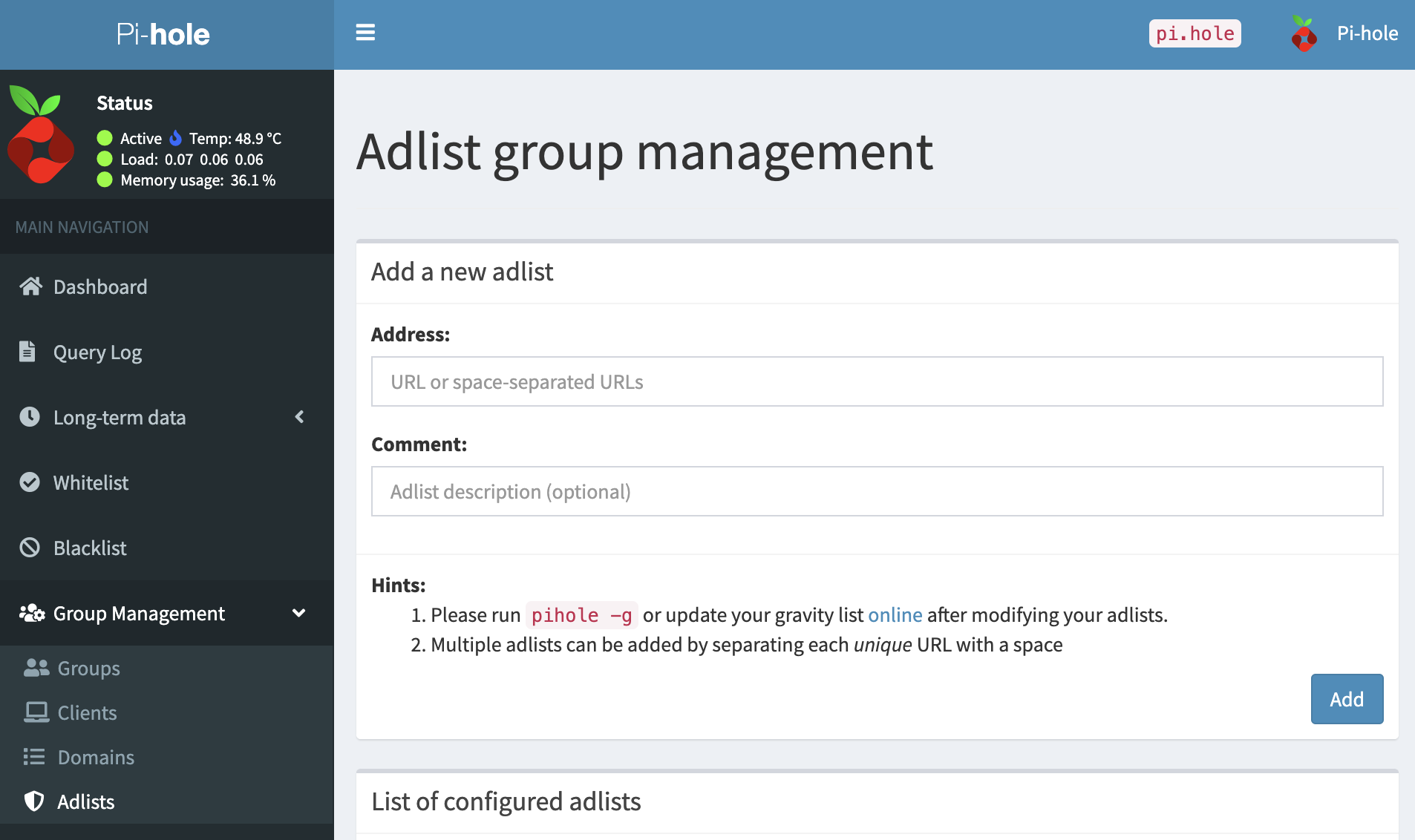
We need to add additional blocklists to our pi-hole because the standard blocklists are not enough to block all sorts of ads on the internet.
The most comprehensive list of lists can be found on this website: https://firebog.net/
In my installation, I used added all green lists being the least likely to interfere with browsing.
To add them, simply navigate to Group Management -> Adlists and add all of them one by one.
Once a day, pi-hole will update all his blocklists using these sources.
The last piece of the puzzle consists in changing the DNS used by your router, pointing to the pi-hole IP address!
See you next time! :)
PS: Coming soon, how to use DNS over HTTPS with pi-hole!